Topic 04 · Masks & selections
Delete a background, keep the sprite.
Downloaded art often sits on a flat colour. Select that colour, press Delete, and it's gone — the sprite drops onto transparency. Three clicks, no eraser.
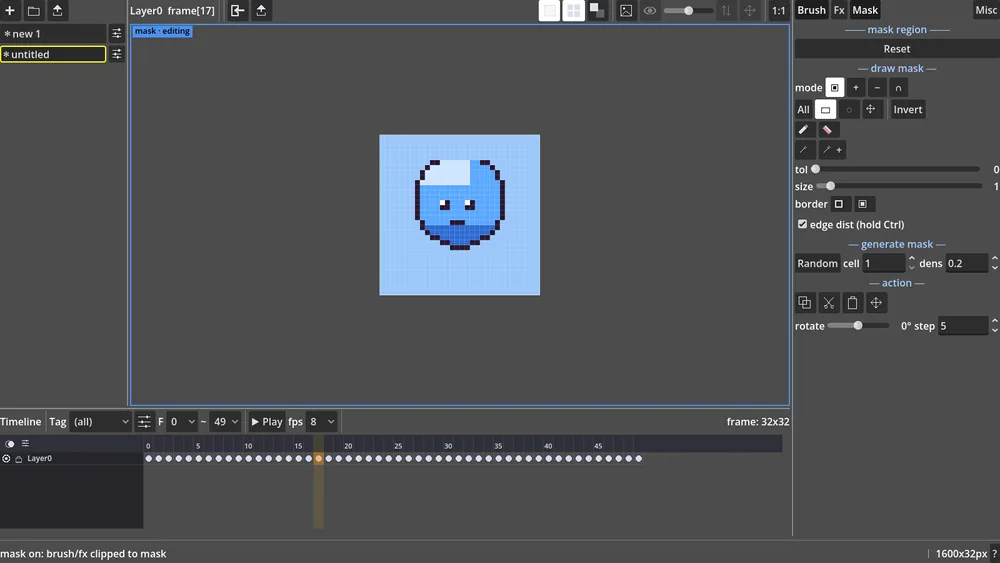
Right panel → switch to the Mask tab. Use the Magic wand (two buttons: contiguous =
connected pixels only, and + = the whole image) or Select same colour — both grab pixels by colour
instead of by shape. For a background, the + whole-image wand catches it all at once; nudge the
tol slider up a touch to forgive near-identical shades.
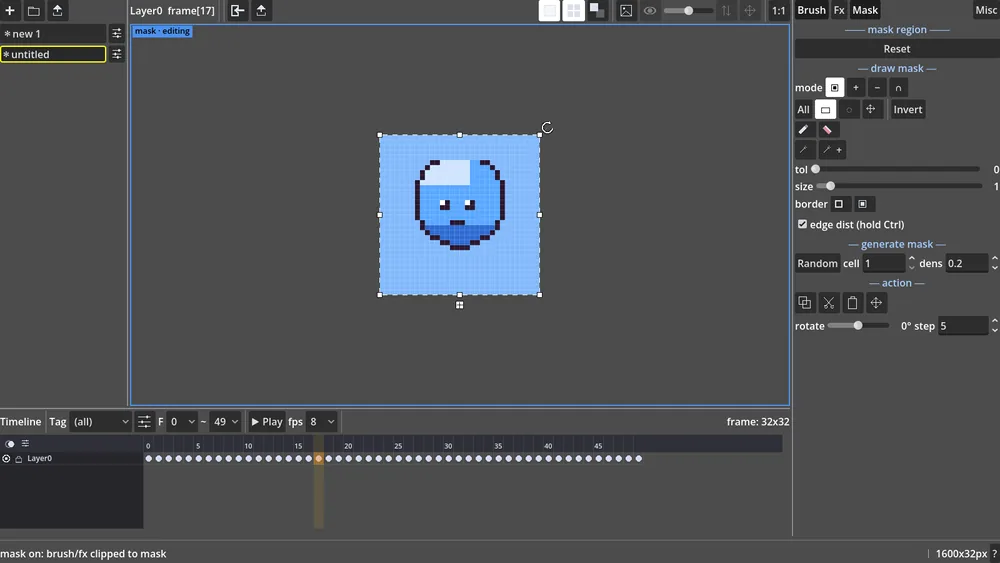
Click any empty background pixel. Every pixel of that colour joins the selection — you'll see the highlight fill the background and outline your sprite. Missed a patch (a shadow, a lighter edge)? Hold Shift (or set the mode to Add) and click it too — it stacks onto the selection.
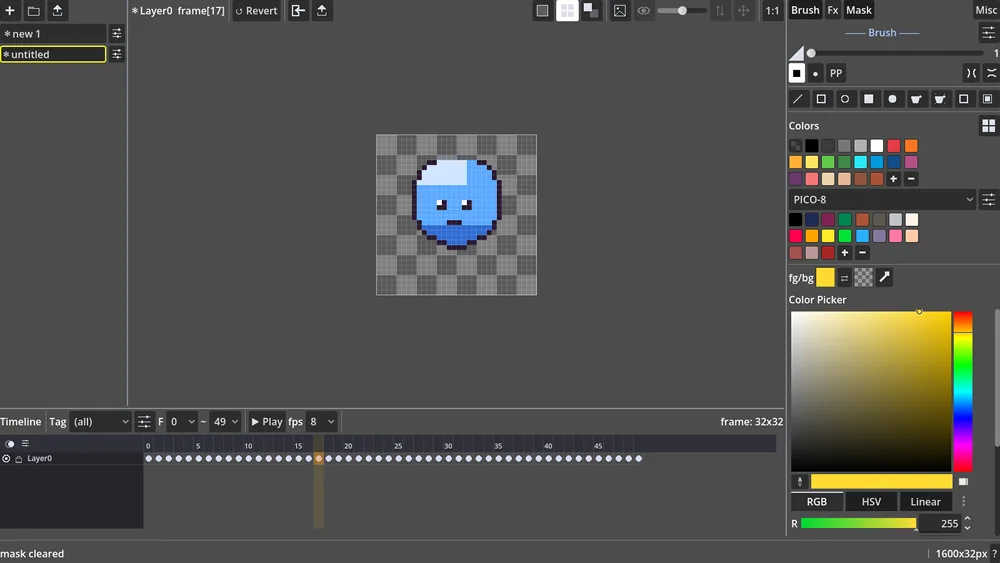
Press Delete. The selected pixels clear to transparent — the checkerboard shows through. (Delete follows Aseprite: with a selection it clears just the selection; with none, it clears the whole cell.)
Your sprite is now on transparency, ready to export as a PNG or pack into a sheet with no background to fight. Same trick works per-frame across a whole animation.
tol before deleting, or
select the sprite instead and use mask → outer border to grab the one-pixel fringe, then Delete that.